Free Photo Text Editor Online: How to Add & Edit Text with Google Pics
Adding text to an image used to be a frustrating game of compromises. If you used traditional web tools, your text was simply pasted as flat raster layers; make a typo or decide to change font styles later, and you were forced to rebuild everything from scratch. If you turned to heavy desktop software, you faced steep learning curves and high subscription costs.
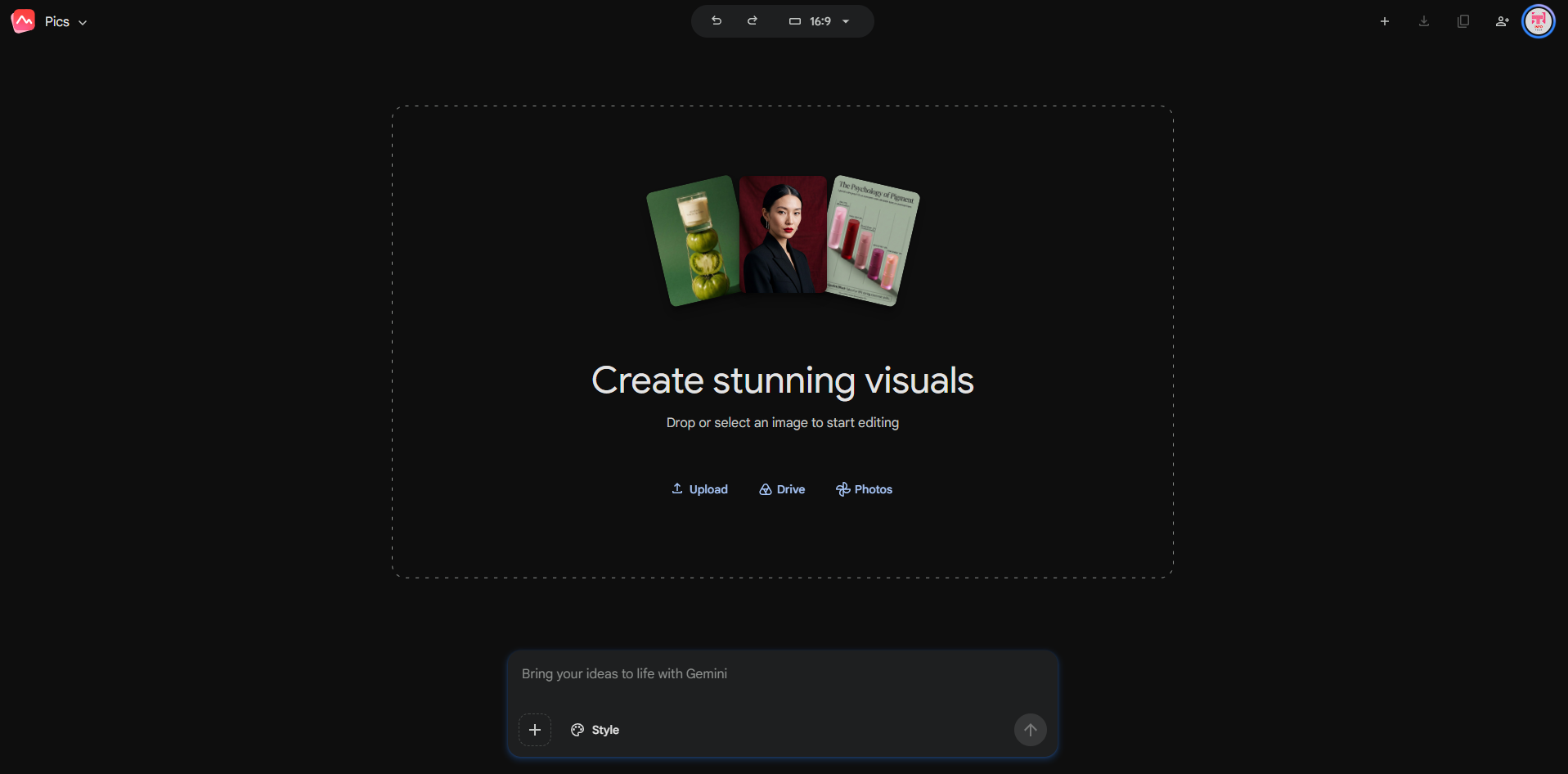
With the launch of Google Pics inside Google Workspace, the workflow for editing visuals in the cloud has changed. Combining Gemini-powered precision with cloud collaboration, Google Pics functions as a next-generation free photo text editor online, allowing creators, teams, and students to manipulate typography, replace words inside existing graphics, and create polished banners without ever leaving their browser.
Here is a practical guide on how to leverage Google pics as your primary online photo text editor.
What Sets Google Pics Apart from Typical Online Text Editors?
Most free online text tools act like digital sticker apps: they paste flat text boxes over an existing picture. If the background has intricate shadows, textures, or gradients, standard overlays often end up looking unnatural.
Google Pics handles visual typography fundamentally differently:
- In-Image Text Recognition & Editing: Google Pics can isolate text elements already embedded inside an image. If you need to fix a typo, update a year, or adjust a headline, you can modify the text directly while the AI preserves the surrounding texture, lighting, and art style.
- Native Google Workspace Integration: Because Google Pics files live right inside Google Drive alongside Docs and Slides, you don’t need to upload or download files across third-party websites. It opens instantly at
pics.new. - Multi-Language Text Translation: Need to repurpose an English marketing visual into Hindi, Spanish, or Arabic? Google Pics allows in-image text translation while automatically matching the original graphic aesthetic.
- Zero Watermarks & Full Resolution Export: Unlike freemium photo editing websites that hold high-resolution downloads hostage, graphics created in Google Pics export cleanly in sharp resolutions ready for web publishing, presentations, or print.
Key Use Cases for Creators and Publishers
- High-CTR YouTube & Blog Banners: Draft bold, legible headlines over portraits or product mockups with natural drop-shadows and studio illumination.
- Flyers and Event Announcements: Add dates, venue details, and guest lists directly to background concepts.
- Product Labels & Branding: Place clean brand signatures, price tags, or product names on item renders without distorting reflections or backgrounds.
- Multilingual Localization: Translate promotional graphics for regional campaigns without having to ask a designer to redesign the source files.
Step-by-Step: Adding and Editing Text Using Google Pics
Step 1: Launch Google Pics
Open your browser and navigate to Google Pics (or type pics.new into your URL bar). You can either generate a new image canvas using a natural language prompt or open an existing graphic directly from your computer or Google Drive.
Step 2: Select the Text or Object Tool
- To add fresh typography: Select the Text tool, position your cursor on the canvas, and enter your headline or body text.
- To edit existing words inside an image: Click the Object Selection tool, highlight the text region you want to alter, and enter your revised text or styling instruction.
Step 3: Refine Typography and Visual Alignment
- Font Harmony: Match the mood of the visual—choose bold geometric sans-serif fonts for tech banners, or balanced serif fonts for invitations and quotes.
- Context-Aware Blending: Google Pics blends lighting and reflections between your text layers and the underlying image, preventing your typography from looking like a flat sticker.
- Contrast and Placement: Position your text over calmer composition zones (such as negative sky space or soft backgrounds) so your words pop instantly.
Step 4: Compare Alternatives & Revert if Needed
Google Pics tracks version history and alternative variations. If a particular font weight or text arrangement doesn’t fit the composition, you can compare multiple rendered variations or revert to an earlier state with a single click.
Step 5: Save and Share
Once finalized, you can insert the graphic directly into a Google Doc or Slide deck, share the live editable link with collaborators via Drive, or download the image as a high-resolution JPG or PNG.
4 Rules for Clean In-Image Typography
- Legibility Comes First: If viewers cannot read the text in two seconds on a mobile screen, reduce complexity and choose a higher-contrast color.
- Limit Your Font Palette: Stick to a maximum of two font families per graphic—one strong headline font and one neutral subtitle font.
- Respect Safe Margins: Always keep typography at least 5% to 8% away from the canvas borders to prevent cut-offs across different device aspect ratios.
- Leverage Negative Space: Let the natural focal point of your picture guide where your text lives. Don’t fight the subject of the photo.
Frequently Asked Questions (FAQ)
1. Can Google Pics modify text that is already inside an image?
Yes. Google Pics features native in-image text recognition and editing powered by Gemini AI, allowing you to select, rewrite, translate, or adjust existing lettering while preserving background textures, shadows, and lighting.
2. How is Google Pics different from conventional free photo text editors?
Unlike standard online editors that merely overlay flat raster text boxes onto images, Google Pics applies context-aware rendering so typography blends realistically with scene depth, materials, and lighting.
3. How do I open and access Google Pics in my browser?
You can launch the editor directly by typing pics.new into your browser address bar or by accessing image documents directly within Google Workspace and Google Drive.
4. Does Google Pics charge a fee or add watermarks when exporting photos?
No. When using Google Pics within Google Workspace, you can export your completed visuals in full resolution without watermarks, subscription paywalls, or quality loss.
5. Can I translate in-image text using Google Pics?
Yes. Google Pics allows you to select text embedded within a photo or graphic and automatically translate it into different languages while matching the original typography style and formatting.
Conclusion
You no longer have to bounce between clunky third-party apps and complicated desktop software just to edit typography. By using Google Pics as your dedicated free photo text editor online, you get professional-grade typography controls, seamless Workspace collaboration, and clean, watermark-free visuals in minutes.